Data Import
The program supports direct import from 5 most popular desktop data formats. Migration rules should be used for other data sources and formats. All standard import tasks are divided into several classes: importing one file with exact parameters, importing all files (tables) present in the source and more complex cases when the results of the query execution are imported.
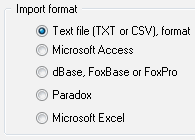
In the first case the product allows you to specify a where clause for the source table and also specify what columns must be imported from it. Thus, in this case it is possible to limit data to be imported by both rows and columns. In case of bulk import it is impossible to introduce these limitations so we recommend that you create separate rules for each table to be imported if limitations are necessary.
In case with a single table and when results are imported, the program allows you to select also the target table: you can either specify one of those already existing or specify a name for a new one - it will be created in the import process. It is a very important aspect in importing because the source file does not contain information about data types at all for a number of data sources (test files, Excel files) or contains only the minimum information (text or number). In this case we recommend that you create a table of the necessary format beforehand. It is not necessary to create fields with the same names that are in the initial files - the column mapping tool allows you to easily and visually match columns in the source and target files. The same mechanism allows you to fill some fields with constants and apply built-in database functions to the source set of fields.
So, let us have the file 'data.xls' in the Excel format
and we need to import the Qty and City fields from it, as well as only those rows that
have the Country column filled in.
In the process of creating the rule, we specify the file type (Excel), the table (for
Excel it is the names of sheets with the character $ at the end) and select the Qty and
City columns for importing. On the same page we specify the import condition (the Where
edit box) as "Country is not null".
If the target table does not exist, it is possible to use
the Execute SQL script rule by putting it before the import rule in the package - thus,
the import task will be completely automated.
Let us suppose now that we need to import data from two Access tables into one Oracle
table. The best thing to do it is to import the results of the query execution by combining
two source tables in the query they way you need it. The same as for the previous example,
it is possible to specify the target table at once or specify the names of fields directly
in the query and tell the program that it is necessary to create a new target table. For example:
Select Name as "NewName", Qty as "Quantity" from Sales, Orders where Sales.ID=Orders.Parent
In most cases information about types from Access tables is enough for the program, but in some cases the target table should be created beforehand.
What to do in those cases when you need to make a selection based on that data which were loaded earlier while importing? There are three import modes in the program (these modes are supported for the migration process as well):
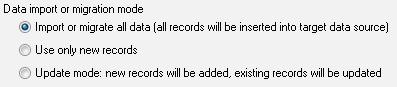
- By default, all data are considered new and the program tries to carry out the insert operation for each source record. Of course, if there is a primary key or a unique index, duplicates will be rejected.
- Only new records are imported, while those records that already exist in the target table are ignored.
- Update mode - new records are added while those already existing are updated during the import or migration processes.
The last two modes require a primary key (unique key) to be present in the target table or, if there is none, the fields to search records in must be specified manually.
Another interesting example of importing is when the source table is a bit modified concerning its structure between sessions. The easiest way to solve the problem is to create two rules one of which will remove the existing table while the second one will carry out the import operation with the necessity to create a new table specified in it. As a result, each time the operation is carried out, there will appear a new table with the loaded data in the target database.
Let us now take additional import options (the same properties are also applied to migration, the differences of which will be dwelled on later) available while the target table is specified. AS an alternative to the Clear Object Rule, you can specify that all data must be removed from the target table.
Another option (it is available and makes sense only for MSSQL) is enabling the values import mode for a field of the identity type. If this mode is selected, the program will automatically execute the necessary commands for the server and perform the migration of such fields.
Data Export

The same as in case with importing, there are three types of sources - a single table, all database tables and the result of executing an SQL statement. Note that if a stored procedure produces a result set, it can be also used as a data source for exporting. The same as in case with importing, you can select the rows and columns you need using methods described for importing. The program supports exporting to the following file types: text (with delimiters or fixed column width), HTML/XML, RTF (MS Word compatible) and a set of SQL statements. Use a data migration rule to export into desktop data files.
Besides, the program can export BLOBs into separate files. It is enough to specify the target directory and the program will form files of the type TableName_Record_NN_Column_MM.bin in it. Long binary or text objects will be put in them.
Along with exporting, the program allows you to recode string into and out of the OEM format, which can make the interaction with old programs working with national character sets much easier.
In most cases you can specify whether the first
line in the output file or table must contain information about column names.
As to exporting query execution results, we would like to draw your attention to
the advice to use 'as' in the list of fields because it makes the result of exporting more visual.
In some cases before carrying out the import or migration process, you should remove data from the target table or delete this very table. You can find an example with the changing structure of an incoming file in the section about importing above. The clear object rule is used for that. Along with deleting a single object, the program allows you to drop or clear all tables in the target database. An alternative solution for the easiest cases is using the 'clear mode' for the target table, which we described above.
Data Migration
Most options and settings described in the import section can be applied to data migration. In this section we will dwell on supplemental options for column mapping that make migration process more flexible.
Along with the direct correspondence of fields to each other, you can specify a number of modifications and call built-in database functions. Suppose you need to fill two fields in the target table as follows: fill the first field with a substring consisting of 3 to 6 characters of the F1 field in the source table and fill the second field with the current date/time of adding the record.
To solve this task, you should use the built-in functions SUBSTR and GETDATE MS SQL Server while specifying rules for mapping. For the second field (date), you should tell the program that the substring will be interpreted as a constant, but not as a column name.
In some cases it is impossible to describe the process using the simplest set of rules and you need to specify a more complex sequence of rules to be executed. For you to do it, the program can follow one or several rules on conditions. The result of the previous step is used as a condition. Let us remind you that any rule can be accompanied with a mark that you can create links to in the operations of conditional and unconditional moves.
Let us take an example: suppose you need to import data and, if the operation fails, import it from another source. Let us prepare two rules for importing and create the following package:
- importing from the first source
- going to the mark QUIT if successful
- importing from the second source
- QUIT: closing the program
After the first rule is over, the program will check its completion code. If it is successful, the second import operation will be skipped, which is exactly what we needed in our task.
The Run external rule is a very convenient mechanism
for creating notifications after this or that process in the program is over. You
can use any command line as a parameter of this rule, e.g.
NET SEND myDBA "Import 2 complete".
In this example a message that the process is completed will be sent to the user myDBA.