Mapping and Conversion Features
We'll discuss three use cases for mapping, mapping to constant and conversion options of the comparison tool. The first use case describes comparison of tables with different structure. The second case deals with comparison and synchronization with constant value. The third one describes data conversion with built-in database functions.
Data Comparison with Mapping
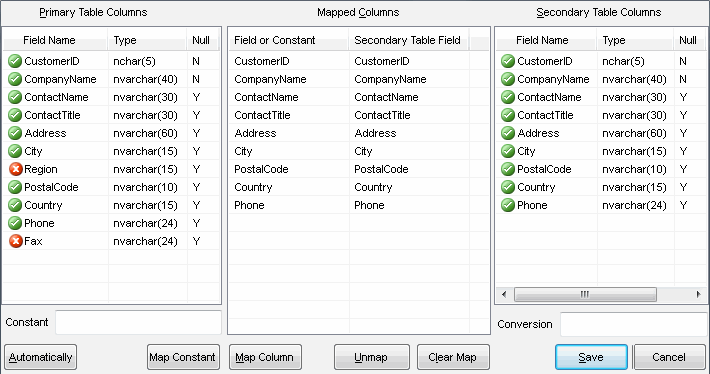
Case: source and target table have different structure. The source table has two columns that should not be compared.
Solution: the mapping feature is suitable for this case. There is step by step guide:
- Connect to both databases
- Select primary and secondary tables to be compared from drop-down table lists
- Click "mapping" button or select related menu item (Ctrl+M hotkey is also available).
- Click "Automatically" button to associate fields by name.
- Check results (see screenshot below) and "Save" mapping.
- Run the data comparison.
Compare and Synchronize with Constant Value
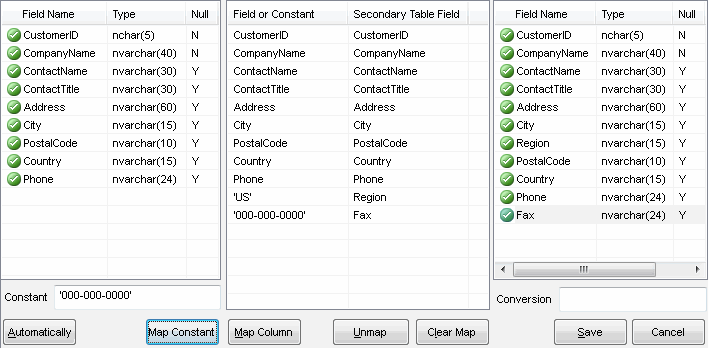
Case: the secondary (target) table has two extra columns. After synchronization both must contain
constant values for new rows, i.e. rows copied from the primary (source) table.
Solution: the mapping feature is suitable for this case. There is step by step guide:
- Connect to both databases
- Select primary and secondary tables to be compared from drop-down lists
- Click "mapping" button or select related menu item.
- Click "Automatically" button to associate fields by name.
- Select column from the right list and enter constant value ('US' or '000-000-0000' in the example) to "Constant" edit box.
- Click "Map constant"
- Repeat these steps for all orphan columns from the secondary table
- Check results (see screenshot below) and "Save" mapping.
- Run the data comparison or synchronization.
Data Synchronization with Conversion
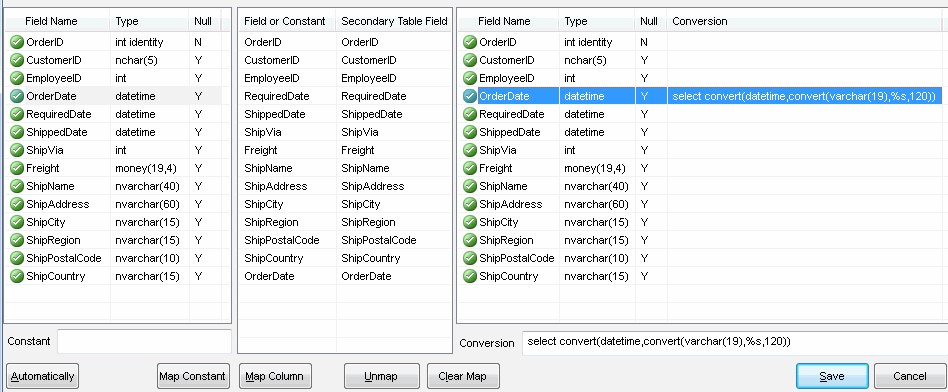
Case: during two SQL Server table synchronization secondary date and time value must be rounded to whole seconds.
Solution: the mapping with conversion is suitable for the case. Please use the first 4 steps of the first case, next:
- Unmap required column by clicking "unmap" button.
- Select source and target fields.
- Enter "select convert(datetime,convert(varchar(19),%s,120))" to "Conversion" edit box and click "Map".
- Check results (see screenshot below) and "Save" mapping.
- Run the synchronization process.