- General
- Advanced
- Additioal Information
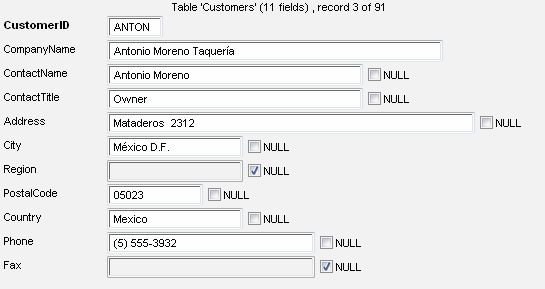
One record form contains field names and controls for viewing and editing them. If a field
is marked as bold, it is a part of the table primary key. If some field is a foreign key,
a combo box where you can select a value for it is displayed (this list is generated based
on the information from the table this field is linked to).
After you make the necessary changes in the form, you can update (Ctrl+U hot key)
the record in the table or save it as a new record (Ctrl+I hot key).
Besides, the program allows you to delete the current record. For
that, there are corresponding buttons on the toolbar and items in the Record menu. To clear
the form (it is usually used when you create a new record), you can use the "Clear form" command.
Note that if a field in the table is linked to another table by a foreign key, instead of an edit box the program will offer you a combo box with key values from the linked table as a means of editing such a field. The program provides you with a more visible way of selecting due to the fact that it can show not only the key values but also the values of the selected field (called "key description field") that, you think, characterize the key value in the best possible way.
The program supports export and import operations for large objects (BLOBs). The buttons for performing these operations are located next to the field name on the form. Besides, the program allows you to view objects of this type using external tools. If an object is in a well-known format (such as Microsoft Word Document or PDF) and the tool required for viewing it (MS Word or Acrobat Reader) is installed on the user's system, the program will start it automatically. If the format of an object is not recognized, the user himself can choose the necessary program.
The "default" checkbox is available for fields with defined default value. You can check it on for the new row to fill out some columns by the default value. In this case, the editor skips actual value in generated SQL statement (INSERT).
To find out the type of a table field, just move the mouse pointer to the corresponding edit box and you will see the necessary information in the tooltip.
The title of the form for editing a record shows the name of the current table, the number of the active record and the total number of records in the table.
Also, you can use an external editor by pressing F4 key. By default, the external editor is Windows Notepad.
Our product allows you to drag-n-drop text data from external sources (like Microsoft Word) to the form field.