Product Home
DTM SQL editor Online Documentation
General
Product profile
Product versions
Database tools
Install software
Upgrade software
Uninstall software
System requirements
How to buy
Product features
User interface
Hot keys
SQL editor
Search and replace
Data export
SQL library
Results viewer
Connect to database
Macros: definition and using
Database schema viewer
Find database object
Data editor
Schema object
Filter database schema
Version control
Command line options
Settings and options
SQL builder
SQL builder
Select type of the statement
Specity objects for select
Build WHERE cause
Select tables or views
Select one table or view
Select fields
Set or change values
ORDER BY and GROUP BY
Create table
Create index
Create view
Plug-ins and SDK
Plug-ins and SDK
Data structures
Plug-in sample, sources
Plug-ins Library
General information
Directory by DBMS
MS SQL Server
Run Query Analyzer
Oracle
Run SQL*Plus
General
Insert Module Header
External preprocessor
Run external tool
Run after script execution
Save/Load Hisroty
Send script by e-mail
Simply preprocessor
WinDiff interface
Directory by functions
Editor plug-ins
Insert Module Header
Run external tool
Run Oracle SQL*Plus
Run MS Query Analyzer
Send script by e-mail
Schema plug-ins
Results plug-ins
Common plug-ins
Run WinDiff
Save/Load Hisroty
Preporcessors
External preprocessor
Simply preprocessor
After execution plug-ins
Run after script execution
Information
Licence agreemnet
Technical support
Send feedback
FAQ and tips
Program tutorial
Troubleshooting guide
Glossary
SQL reference
SQL quick reference

Search and replace tools

The "Search and Replace" feature helps you to find some text fragment and, if necessary, to replace this fragment with the new string you specify. Please use "Script->Search and Replace" menu item or corresponding toolbar buttor to access this option.

Use "Replace" button for this purpose. Press "Replace all" button to replace all strings found without the confirmation requests.

Please remember, pressing Ctrl-F will help you to access the search dialog faster. Employ the appropriate combo box to access the history.
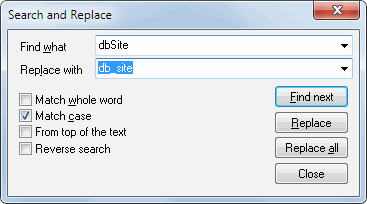
"Search and replace" dialog saves the position of window either for the current session or between sessions.