- General Information
- Rules
- Additional Information
To unmap some correspondence select it and click "Unmap". To map select one field in the source table and one field in the target table then click "Map".
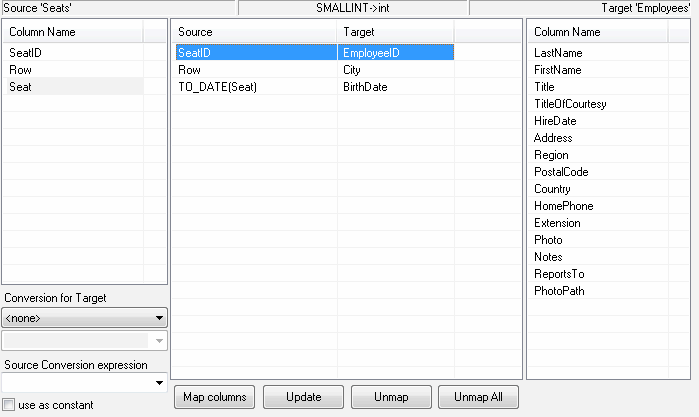
Also, the mapping dialog box allows you to describe additional conversions for the source data during
the migration or import process.
You can specify a function for column conversion. To do it, enter the name of the function or an expression
in the 'Conversion expression' field. If you use the name of a function, you will get an expression of
the following type: FUN(column). You should use the %s marker to specify the position of the parameter
for an expression, e.g. SUBSTR(%s,1,5).
You can specify the explicit conversion of types to the Integer or Float value. It makes sense when you
need to remove non-significant zeros, etc.
See also: how to use database built-in functions with mapping feature.