Table of Content
- General Information
- Product Features
- Database Connection
- Product Settings
- SQL Builder
- Plug-ins and SDK
- Plug-ins Library
- General Information
- By DBMS
- By Functions
- Editors
- Common
- Preprocessors
- After Execution Plug-ins
- Additional Information
- SQL quick reference
Results Viewer
If the SQL script being executed produces the resulting recordset(s) You can view it in the "Results" pane of the main window.
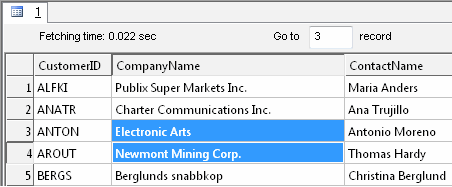
It allows You:
- to list the recordset one record by one or page by page (Up, Down, Page Up and Page Down buttons);
- to seek begin or end of the recordset using Ctrl+PageUp and Ctrl+PageDown buttons.
- to set the width of columns representing the fields of records;
- to see the current record number and the total number of records in the status bar of the dialog;
- to place the cursor directly to the chosen record;
Placing the mouse cursor over the column header will tell you the type of data stored in this field:

There is a picture of local menu accessed by the right click inside the results window.
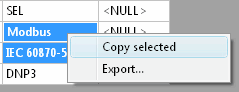
Using this menu you can:
- copy selected items onto the clipboard
- call "export dialog"
- run "results" plug-ins, if present
Using toolbar buttons you can:
- refresh data in the grid
- select all present data in the grid
- copy selected data
- call "export dialog" for selected type of the export
- sort results by the selected column (field)
- print results
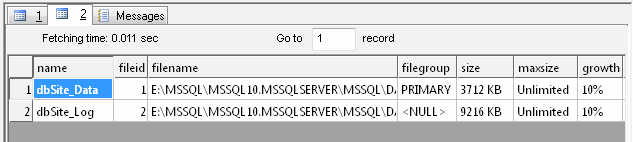
"Results" window contains few result sets when you execute more than one SQL statement or statement (same as procedure call) returns multiple result sets. You can switch between result sets by click on the corresponding tab: