- General Information
- Product Features
- Database Connection
- Product Settings
- SQL Builder
- Plug-ins and SDK
- Plug-ins Library
- General Information
- By DBMS
- By Functions
- Editors
- Common
- Preprocessors
- After Execution Plug-ins
- Additional Information
- SQL quick reference
Frequently Asked Questions
Q:
How can I use DTM SQL editor as the external editor for Oracle SQL*Plus ?A:
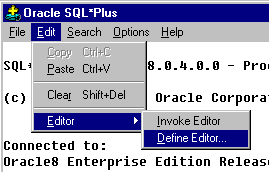
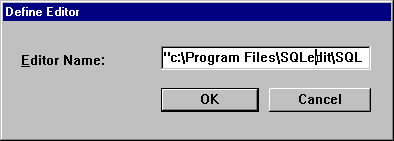
There are two options: permanent use and single session use. If you choose the permanent use mode, you should create or edit login.sql file in the home directory of SQL*Plus (D:\ORANT\BIN) and insert the following line: DEFINE _EDITOR=<program path>, see below for reference.WARNING: in the case when the path has spaces, put it into quotation marks; see the second figure.
If you choose the single session use mode, just type
DEFINE _EDITOR=<program path>, for example:
DEFINE_EDITOR=C:\Program Files\SQLedit.exe
Another way is to select Editor/Define Editor item in "Edit" menu and to type the program path in the dialog box.
Q:
What is the easiest way to place query results into MS Excel spreadsheet format?A:
Right click over the page with the results and select "Export". Select "Excel" as your export format.Q:
Are there easy ways to publish the results on the Web?A:
Use HTML export feature. Right click over the page with the results and select "Export". The program saves data in the very basic format, so we recommend you to employ some more powerful HTML authoring tool to edit the data afterwards.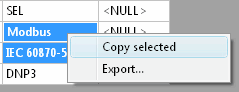
Q:
I usually acquire data from several data sources at a time. How could I know which data source I'm connected to?A:
Starting from the version 1.00.84, the program displays the name of the current data source you are connected to, user name and the name of the data scheme in the window title in "DSN/user/owner/database" format. If some of these fields are empty, they are not displayed, but separating '/'s remain.Tips. Did you know...
You can get quick access to the file or script you edited earlier by using drop-down menues near Load and Run toolbar buttons.
You can use macros to automate entering scenarios.
You can use right mouse button to get access to the context menu in SQL editor or results viewer.
You can select rows, columns or set of cells in the results grid using left mouse button and drag.
You can view Binary Large Objects as binary or as hexadecimal. View "Settings" for more details...
Program can visualize NULL data values as empty strings or as "NULL" strings. See program options for detailed information...
You can view current cursor position at the right side of the DTM SQL editor status bar.
Program always creates backup (.BAK) file in the same directory to avoid data overwriting.
Program always creates "auto-save" file for the current script before running it to prevent data loss.