- General Information
- Project Properties
- Database Connection
- Program Settings
- Table Rule
- Advanced Rules
- Built-in Tools
- Advanced Rules
- Additional Information
Direct Connection
The direct connection method allows you to connect to most popular databases
(MS SQL Server,
Oracle, Interbase/Firebird, MySQL,
PostgreSQL and DB2).
Enter the server name and the database name, if required. The user name and password are optional.
Their necessity depends on the settings of your database. The owner name (schema) is
optional too. The list of visible database objects depends on the choice of the owner.
If the owner is empty, you will access all objects. There is important that schema/owner name is case sensitive.
If you do not find the required database type in the list or cannot connect directly, use a
connection through the predefined data source. If DBMS is in the list, but unavailable, it
means that either the required ODBC driver is not installed or it is not configured properly.
During its use, the program stores the entered values of server names, users and owners.
You can select a value from the stored list using the corresponding combo box.
For some DBMS types (MS SQL, for example), the program can fill the list of available
databases. Use the button with two arrows for this purpose.
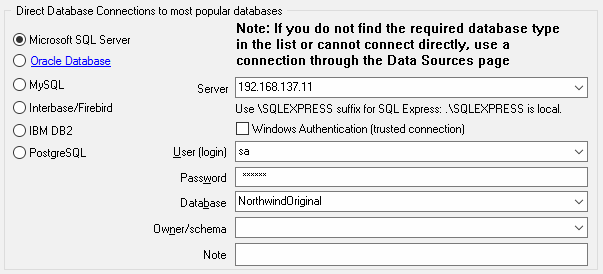
DBMS-specific connection options
Microsoft SQL Server
- "(local)", empty or "." server name means local server
- use <server name>\<instance name> syntax to identify instance. Example: .\SQLEXPRESS means SQL Express at the local system
Oracle
Use connect string for the Oracle Server that you want to access as a Server name.
Important: it is strongly recommended to use native Oracle Call Interface (OCI) instead of direct connection.
Interbase and Firebird
Examples:- Server: localhost and Database c:\interbase\myDb.fdb - connect to specified DB on local system.
- Server: 172.17.2.10/3051 and Database /usr/local/db/myDb.fdb - connect to specified server with alternate port 3051 on remote system 172.17.2.10
MySQL
- Use localhost for local MySQL
- example.com;port=3306 means MySQL at example.com on 3306 port
DB2
ServerName;port=5000;protocol=TCPIP as a server name means connect to ServerName, use 5000 port and TCP/IP protocol.PostgreSQL
ServerName as a server name means connect to ServerName, use 5432 port and TCP/IP protocol. Database name is required. localhost as a server name is acceptable. To specify custom port you should add ";port=NNNN" string to server name.server_name_or_ip-address;port=5432;DATABASE=dbname