Table of Content
- General Information
- Project Properties
- Database Connection
- Program Settings
- Table Rule
- Advanced Rules
- Built-in Tools
- Advanced Rules
- Additional Information
About the test data generator
DTM Data Generator is a simple, powerful and fully customizable tool that generates data rows and schema objects for database testing
purposes.
The project is a set of generation rules. There are four principle generation rules: data rows
generation (one rule correspond with one table but the user enabled to create a few rules for the same table), tables generation, objects generation and clear rule.
- The data rule inserts or appends the specified number of records into one table. This rule can also update existing data or scramble it to another database.
- The tables rule creates any number of tables with the same structure and with the names according to the template; the created tables can be populated by test data.
- The objects rule makes any number of database objects (views, procedures, etc) with the same definition (SQL statement) and with the names according to the template provided by user.
- Clear Rule helps users to remove existing data from the database table(s) before the generator execution.
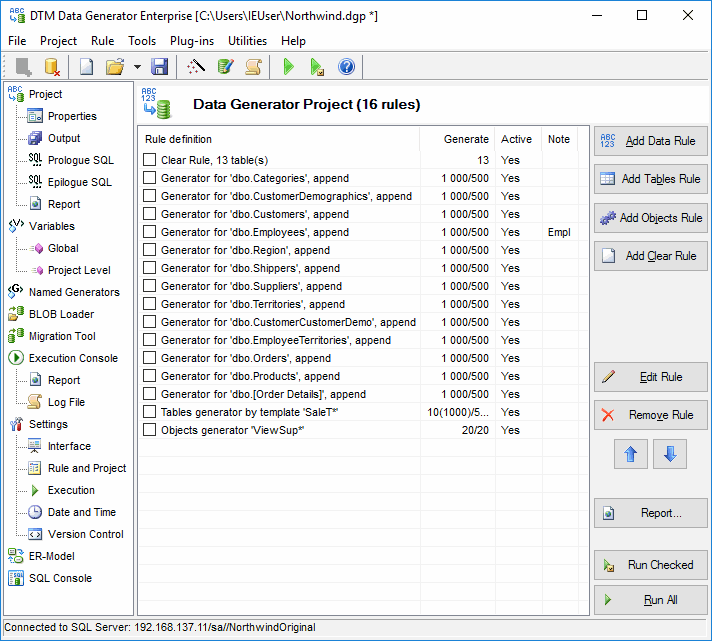
Note: '*' in the window title means the current project is not saved.